The September 24 full release specifically fixed inspection results and interactions for multiplayer clients. That changes how to read older Update #5 warnings: they describe earlier builds, not a confirmed current defect on every platform.
What the official updates confirm
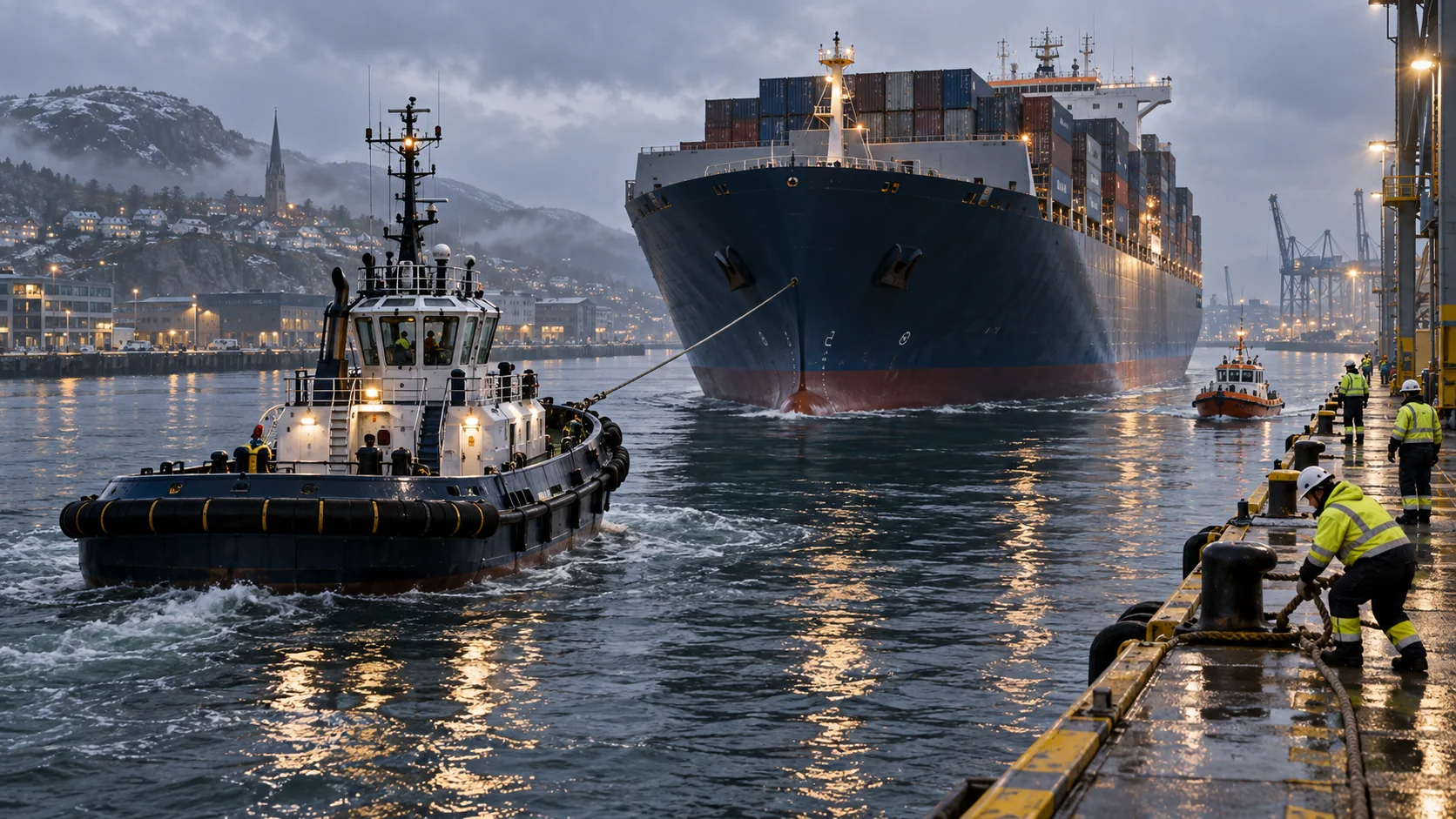
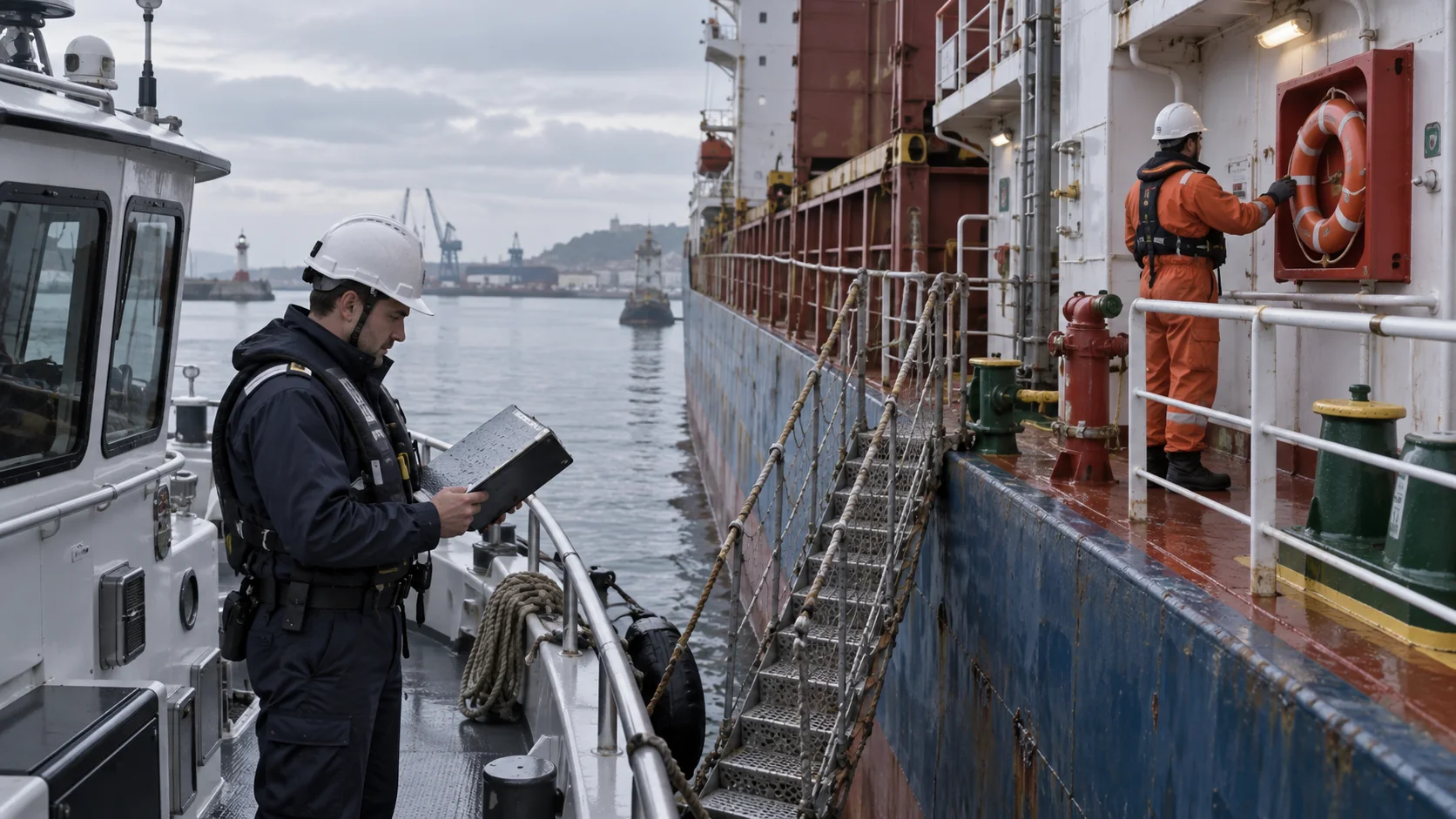
The April 30, 2026 Immersion Update reworked inspection gameplay and added it to Patrol Missions. It lists two types: Security and Environment. It also says Tug Boats, Ferries and LNG Carriers can be inspected. The Career Update later described deeper checks covering documents, technical condition, crew and safety.
The August 2026 update added an inspection results screen that summarizes the vessel's status. Together, these notes establish the broad loop: take an inspection mission, identify its variant and requested checks, use the prompts for the vessel, then review the summary. They do not publish a universal step order or a checklist of every possible component for every ship.
| Confirmed element | How to use it |
|---|---|
| Security and Environment variants | Read which variant the current mission presents; do not assume both ask for the same checks. |
| Documents, technical condition, crew and safety | Treat these as categories the inspection system can cover, not a promise that every mission uses every category. |
| Tug Boat, Ferry and LNG Carrier listed as inspectable | Check the mission and target vessel shown in your build; the list comes from the April update. |
| Patrol Missions include inspections | Look at the mission objective and its current stage before interacting with the target. |
| Results screen summarizes vessel status | Review it before ending the mission flow so you can see what the game recorded. |
A careful inspection routine
- Read the mission variant. Confirm whether the task is Security or Environment and note the target vessel. Do not enter the inspection assuming the mission uses the same variant as the last one you played.
- Read each requested check. Documents, technical inspection, crew and safety are confirmed inspection categories. Use the interaction that the current build names for that check. The published notes do not provide a fixed control list, so this guide does not substitute keybinds.
- Follow one prompt at a time. Complete the requested interaction and wait for the mission to update before moving to another area. This keeps you from confusing a still-active step with a failed check.
- Check the result summary. The August update says inspection missions end with a results screen summarizing the vessel's status. Read it to confirm what the game recorded and whether the mission has moved to its ending state.
- Record the mismatch if something does not register. Note the exact mission variant, target vessel, platform, and text on the screen. Inspection variants can differ, and the September 24 release addressed client inspection problems reported in earlier builds.
This sequence is a practical way to keep the task legible; it is not an official score-maximizing order. If your mission has an objective not described above, follow that objective rather than trying to force it into a generic checklist.
Security and Environment are not interchangeable labels
The official notes name Security and Environment, but do not list every sub-check under each category. The Career Update's broader description confirms that document, technical, crew and safety checks are part of the reworked inspection experience. It does not map every check to one variant or state that each category always appears.
That distinction prevents a common trap in guide writing: turning the names of broad systems into an invented ship-by-ship checklist. The in-game mission text is the correct instruction for a specific inspection. If a check is missing from the objective, do not infer it from a different vessel's inspection or an older mission.
Troubleshooting a check that will not advance
Update #5 listed cases where a multiplayer client appeared stuck during inspection and where a variant could reroll per ship after reload. Full Release fixed inspection results and interactions for clients. Do not assume an older symptom still has the same cause. If a check fails in your current game, identify the exact variant, target vessel, objective and platform before deciding what to do next.
If an interaction does not advance:
- Re-read the current objective and make sure you are acting on the target it names.
- Confirm which variant is active in this attempt; do not rely on a previous run's sequence.
- In co-op, compare the host's mission state with the client's view. Full Release improved client inspection state, but the comparison still helps describe any mismatch you actually see.
- Save the exact text and vessel details for a bug report if the issue persists. The official site points players to its in-game bug-reporting system and community channels.
Do not treat a reload or a different interaction as a guaranteed fix. If the objective remains blocked after you re-read the prompt, report the observed state using the game's bug-reporting option.
Inspecting with a crew after Full Release
Agree who will read the active objective and who will perform the next check before boarding the target. The result screen summarizes vessel status; have a host and one client compare that summary if the crew is unsure whether the inspection registered. The September 24 update addressed client inspection results and interactions, so a disagreement is useful to report with the mission name and platform rather than to explain away as an unavoidable old bug.
The update also fixed a crash that could occur when a player switched to an inspection vessel while another player used a drone. It does not publish a complete list of which checks can be performed simultaneously, so let the current mission prompt guide the crew. If multiple players act at once and the objective is unclear, pause, name the requested check and assign one player to finish it before moving on. For a broader role split, see the Co-op Crew Guide.
Common questions
Which ships can be inspected?
The Immersion Update lists the Tug Boat, Ferry and LNG Carrier as inspectable vessels. Check the mission display for the current target and any later additions.
What is the difference between Security and Environment?
They are two inspection variants confirmed by the official notes. The notes do not publish a full per-variant checklist, so use the current mission's prompts.
Is there a final summary?
Yes. The August 2026 update says inspection missions end with a results screen summarizing vessel status.
What if the same ship gets a different inspection after reloading?
The Update #5 known-issues list reported that behavior. The Full Release notes do not explicitly say whether that particular reroll was fixed, so check the variant displayed in the current mission after reloading.
Check for inspection changes
Inspection prompts and fixes can change with a patch. Check the official update history if a step does not match your mission; it includes the full-release client inspection fixes.